Status pages
Create a page
A status page is the page your customers open. It lives at {slug}.status.scaledpapers.com. Public pages are open. Private pages (Pro) ask for a shared password first.
You manage it in the console. Visitors never need an account. After the page exists, add components and incidents. Public pages can offer visitor subscribe. You can also link a check to a component from the check form.
Create
- Sign in and go to Status pages, or click New status page.
- Fill in Name (required).
- Subdomain is required. It is generated from the name as you type: lowercase, non-letters become
-, ends trimmed, max 40 characters. The live host is{slug}.status.scaledpapers.com. The slug cannot be changed later. - Custom domain is optional (Pro). Enter a hostname such as
status.yourcompany.com. Add a CNAME for that hostname tocname.scaledpapers.com. After create, Page settings shows the TXT challenge; click Verify DNS when the records are live. - Optionally check Make status page private (Pro). Private needs a shared password of at least 8 characters. You can change this later on Page settings.
- Click Create. You land on that page’s Incidents list, or Page settings if you set a custom domain.
There is no slug field on Page settings.
To throw the page away: Delete page at the bottom of Page settings (or the row menu on Status pages). You must type the slug to confirm. That removes the public page, its components, incidents, and alerts. You land on Status pages.
What visitors see
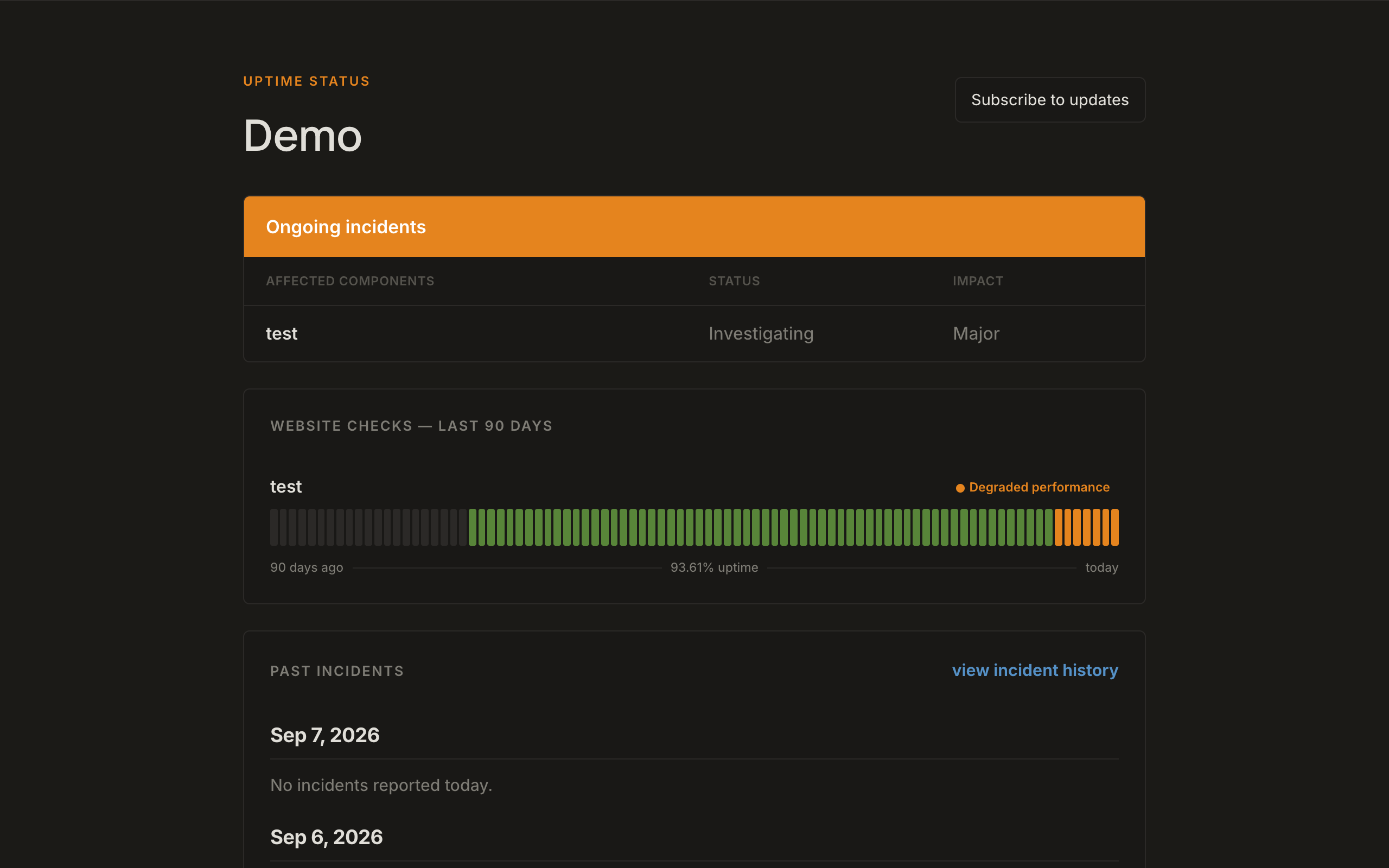
The public page shows:
- Overall status: All systems operational as a large status line when healthy, or a filled banner for Degraded performance, Partial outage, Major outage, or Under maintenance
- Website checks — last 90 days — each component’s status and a 90-day uptime bar
- Component labels: Operational, Degraded performance, Outage, Under maintenance
- Groups as collapsible sections
- Ongoing incidents when something is open
- Under maintenance list when a window is active: Affected components and remaining duration (Until the window end in the page time zone). The banner hides while that list is shown. Open incidents still list above maintenance.
- Past incidents and a link to full history (
/incidents, paginated) - Subscribe to updates
- Footer: Powered by ScaledPapers and a theme control (System / Dark / Light)
Incident URLs use a 12-character public id: {page}/incidents/{id}.
View status page in the console sidebar opens this URL in a new tab.
Status badge
Every public page serves a live SVG badge at https://{slug}.status.scaledpapers.com/badge.svg (also https://scaledpapers.com/s/{slug}/badge.svg). It shows the page's overall state: operational (green), degraded (amber), partial outage (orange), major outage (red), or maintenance (blue). Optional query parameters: label (left text, up to 32 characters, default status) and style (flat, flat-square, for-the-badge, or landing). Landing draws a colored dot and a sentence (All systems operational, Degraded performance, Partial outage, Major outage, or Under maintenance) for a footer or marketing page, and ignores label. The image is cached for five minutes. Private pages return 404 instead of a badge.
The free status badge builder renders a preview and gives you Markdown, HTML, and reStructuredText snippets that link back to the page.
Page settings
Page settings (/app/{slug}/page) is the public identity of the page.
| Field | Required | Used for |
|---|---|---|
| Page name | Yes | Public title |
| Company logo | Optional | If set, shown next to the page name. PNG and SVG logos also replace the browser tab icon |
| Company website URL | Optional | If set, the public page name links here |
| Support URL | Optional | If set, a Support link on the public page |
| Privacy policy URL | Optional | If set, shown in the subscribe modal |
| Page time zone | No (default UTC) | Incident days and maintenance times; not a public field |
| Make status page private | No | Unchecked is public. Checked (Pro) is password-protected; visitors enter the shared password once |
| Custom domain | No | Pro. Serve the page at status.yourcompany.com. Set it here, then add the CNAME and TXT records |
Click Save page settings. That also saves a new custom hostname. After the hostname is set, copy DNS, Verify DNS, or Remove domain.
Delete page is a danger zone at the bottom of this screen. Type the slug to confirm. /app/{slug}/delete still opens that section.
Private pages stay at the same URL. Visitors see the page name and logo, then a password field. After they unlock, the status page works as usual, but Subscribe and RSS stay off so the feed cannot be shared without the password. Switching back to public clears the password.
Private is a Pro capability at create and on any existing page — it does not use a separate page quota. Free workspaces cannot set Private. If a workspace leaves Pro, existing private pages stay locked until you switch them to public.
Custom domain
On Pro, serve the page at a hostname on your domain such as status.yourcompany.com. Apex hosts (yourcompany.com) are not supported.
You can set the hostname when you create the page or later on Page settings (/app/{slug}/page). Then add two records at the DNS host for your domain (for example Cloudflare zone yourcompany.com):
- CNAME — Name
status(the host, notcname.scaledpapers.com), Targetcname.scaledpapers.com. In Cloudflare, turn Proxy off (DNS only / grey cloud). - TXT — Name
_scaledpapers-challenge.status, Contentscaledpapers-verify=…(the value appears on Page settings after the hostname is saved) - Click Verify DNS. When the certificate is live, visitors use
https://status.yourcompany.com.{slug}.status.scaledpapers.comredirects there.
If Cloudflare Name is cname.scaledpapers.com, the record becomes cname.scaledpapers.com.yourcompany.com, which is wrong.
Page settings can copy the CNAME and TXT rows, Verify DNS, or Remove the hostname.
Private pages can use a custom domain. Visitors still unlock with the shared password on that host. Subscribe and RSS stay off.
Metrics (/app/{slug}/metrics) shows response-time charts for checks linked to this page. Empty copy: Link a check to a component on this status page to see response time here. /app/{slug}/ping redirects here.
Maintenance windows pause linked checks and mark components Under maintenance. Invite teammates on Team. API keys are under API Keys for the workspace selected in the sidebar.