Account
Sign in and plans
ScaledPapers uses email magic links. There is no password to set or reset.
Console login
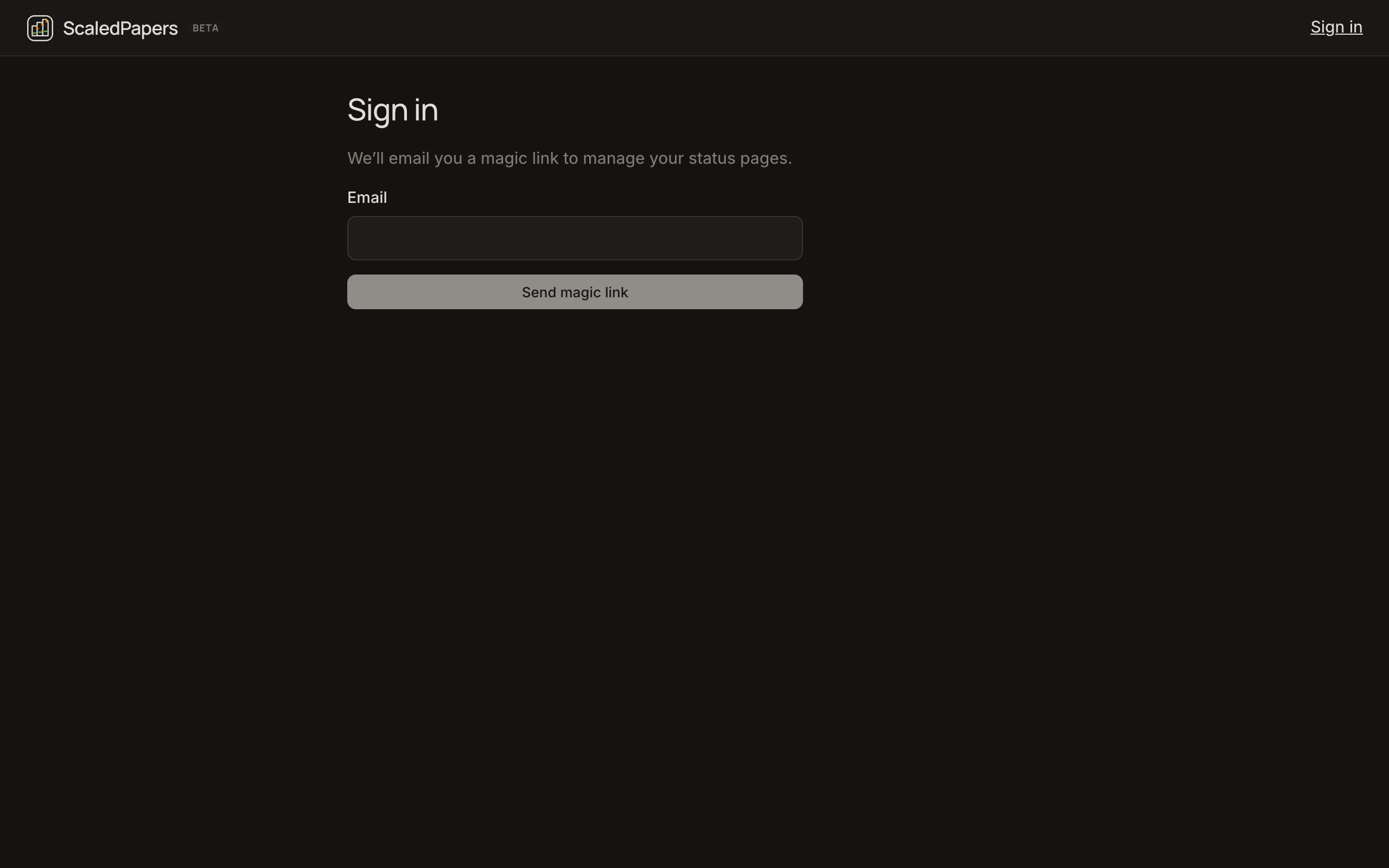
Use this when you want status pages or checks.
- Open Login. Copy: We’ll email you a magic link to manage your status pages.
- Click Send magic link. The button shows Sending link…, then Check your email.
- Open the mail and follow the link. You should arrive on
/app(usually Checks → API if you have no last tab). - Sign out is in the header Account menu.
The marketing Login control becomes Dashboard when a session exists.
Discover login
Daily papers can sign you in from Settings → Account on /discover (Send link). That link is meant to return you to Discover, not the console. Skip, save, and notes then sync.
You can use the same email for both. Start from the surface you want to land on.
What you can do without paying
Nothing in /app charges a card today. Pricing in the header goes to /pricing. There is no Billing item in the console.
Without an account
- Website checker on the homepage
- Daily papers on Discover (this-browser only for save/notes)
With a free account
- Create 1 public status page (slug, components, incidents, subscribe)
- Create up to 5 API, Website, DNS, or TCP checks, interval at least 5 minutes, 1 probe region, 14 days of samples
- Sync Discover skip/save/notes
Pro also includes Private (password-protected) status pages and 5 pages. Set Private on New status page or Page settings. See Pricing.
Team
Use Team to invite people by email. Roles:
| Role | Team | Checks and status pages | Create or revoke API keys |
|---|---|---|---|
| Owner | Invite admin or member; change or remove admin and member | Yes | Yes |
| Admin | Invite, revoke, or remove member only | Yes | Yes |
| Member | View the team; no invites or role changes | Yes | No |
If you belong to more than one workspace, the sidebar Workspace control switches between Personal and invited workspaces. Checks, status pages, API keys, and maintenance windows follow the selected workspace.
API keys
Open API Keys while signed in to the workspace you want the key to act as. Only an owner or admin can click Create API key. Copy the secret once. Call https://api.scaledpapers.com as Authorization: Bearer sp_…. Call the API lists, creates, pauses, and runs checks and maintenance windows; Status API manages that workspace’s status pages with the same key. MCP uses that key from Cursor, Claude Code, or Codex.
A key is bound to the workspace where it was created. It does not follow the person who created it, and x-scaledpapers-workspace-id does not change which workspace it uses. Team routes (/v1/team) reject API keys — invites stay in the console.
If an admin is later changed to member, existing API keys are not revoked and keep working until an owner or admin revokes them. Members cannot create or revoke keys. Revoke a key if it leaks or if that person should no longer call the API.
Settings
Open Settings for plan usage of the workspace selected in the sidebar, and your account email.
- Plan — the current plan name and a View plans link to Pricing. Subscribe on Settings opens checkout for the selected workspace. Pro covers private status pages and a custom domain (
status.yourcompany.com) on New status page or Page settings. Custom domains CNAME tocname.scaledpapers.com. The card shows that workspace’s minimum check interval, probe region cap, and sample retention fromGET /v1/usage. - Usage — checks used of the plan maximum, monthly probes of the UTC-month quota (scheduled checks pause if you hit the quota), status page count, and the probe region cap.
- Alerts — Slack, Discord, PagerDuty, Pushover, and signed webhooks for this workspace.
- Account — your sign-in email (read-only; there is no password). The header Account menu has Settings, Changelog, Theme (System, Light, or Dark), and Sign out.
- Danger zone — owner only. Type the confirm token (your email for Personal, or the workspace name for a named team) to delete. If you own more than one workspace, Delete workspace removes this workspace’s pages, checks, keys, alerts, and members. If it is your only owned workspace, Delete account does that and also deletes your sign-in. You are then signed out. A paid period that is still active (including one scheduled to cancel at period end) blocks delete until billing no longer grants access — use Manage billing first. Billing history stays on file. Admin and member can view Settings but do not see this control.
Members can view Settings. Team, API keys, and status-page Slack stay on their own pages.
Coming soon (do not expect these to work)
These items are Coming soon or not in the console yet:
Help in the header does nothing. Docs opens these pages.
Alert destinations (Slack, Discord, PagerDuty, Pushover, signed webhooks) are created on Settings → Alerts and attached to checks and status pages; they are live on Pro. Visitor Slack subscribe is the /feed subscribe command — see Subscribe.